Terminal > Knowledge & collaboration
Admin Panel for Warp Terminal
Configure Warp Terminal team policies for agent behavior, personal conversation sync, Codebase Context, and Warp Drive sharing.
Use the Warp Admin Panel to configure team policies for Warp Terminal, including agent approvals, personal conversation sync, Codebase Context, and Warp Drive sharing.
Your role determines administrative access. Your plan and workspace policies determine which settings you can change. For policies across an Enterprise workspace, use the Enterprise Admin Panel guidance.
Accessing the Admin Panel
Section titled “Accessing the Admin Panel”For team admins
Section titled “For team admins”- Open the Admin Panel and sign in.
- For a self-serve team, confirm the selected team. In an Enterprise workspace, under “Team admin” in the sidebar, click the team name.
- Open the section for the setting you want to change. Confirm the team name before making a change.
To change team admins or ownership, follow Managing admins or Transferring team ownership.
For team members
Section titled “For team members”Team members see enforced settings in their personal Warp Settings. A disabled control can show “Your organization has configured this setting.” Ask the appropriate team or workspace admin to review it.
How settings enforcement works
Section titled “How settings enforcement works”An editable team setting applies to members of the selected team. Some controls let you enforce a value or select Respect User Setting so members can choose their own preference.
Setting enforcement levels
Section titled “Setting enforcement levels”| Setting state | What it means |
|---|---|
| Team enforced | Members cannot override the configured value |
| Respect User Setting | Individual members control their own preference |
| Tier restricted | The plan does not permit changing the control |
In Enterprise, a workspace policy can also lock a team control. Ask a workspace admin to enforce or delegate the workspace policy. Team admins cannot override that policy.
Test a changed policy with an affected member before applying it to other teams.
Plan limitations
Section titled “Plan limitations”A plan-locked setting shows “Configuring this setting is not available on your plan.” Review Warp Agent plans for plan requirements.
See Managing admins for multiple-admin availability by product and plan.
For factory-plan data controls and usage visibility, use Warp Factories team administration.
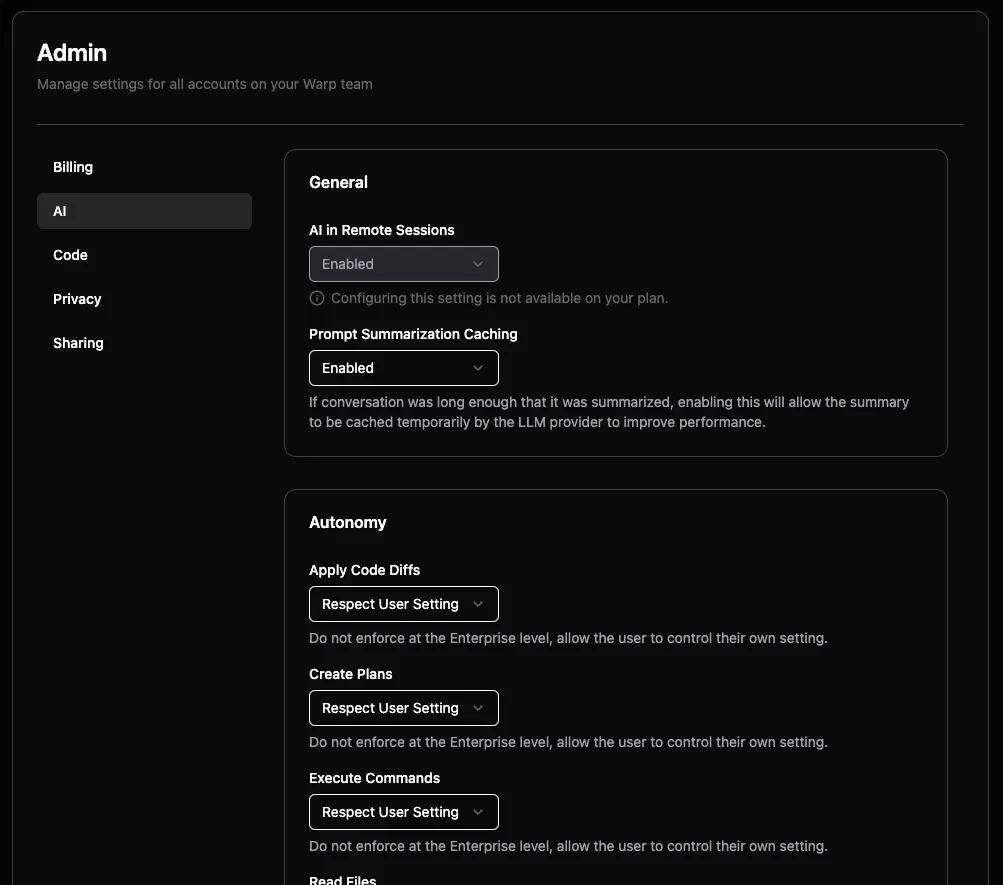
AI settings
Section titled “AI settings”Under AI, configure supported Warp Agent behavior for the selected team. Autonomy controls do not apply to sandboxed agents. Do not assume they govern every harness.
- AI in remote sessions - Controls availability during SSH sessions and other remote connections.
- Prompt summarization caching - Controls provider caching used for long conversations. Provider retention follows the selected model and inference configuration. See model retention policies.
Autonomy settings
Section titled “Autonomy settings”To set approval behavior for applying code diffs, creating plans, executing commands, or reading files:
- In the team’s Admin Panel, click AI and find “Autonomy”.
- Click the “Apply Code Diffs”, “Create Plans”, “Execute Commands”, or “Read Files” dropdown for the action you want to control.
- Select Agent Decides, Always Ask, Always Allow, or Respect User Setting.
- Wait for the update to complete. Reload the page and confirm the value persists.
See Agent Profiles and permissions for the action permissions and personal configuration.
Directory and command control
Section titled “Directory and command control”Directory allowlists identify approved paths, such as ~/git/internal-tooling or /home/user/repos/public-*. Command allowlists and denylists use regular expressions.
To change an Autonomy list:
- In the team’s Admin Panel, click AI and find “Autonomy”.
- Under “Directory Allowlist”, enter a directory path and press
Enter. For command rules, enter a regular expression under “Command Allowlist” or “Command Denylist” and pressEnter. - Confirm the entry appears in the list. Reload the page and confirm it persists.
To remove a team entry, click its remove control and confirm the entry disappears. Entries marked “Added by your workspace” are managed by a workspace admin.
Privacy settings
Section titled “Privacy settings”Content collection for service improvement
Section titled “Content collection for service improvement”The “UGC Data Collection” dropdown controls collection of team content for service improvement. Telemetry, provider retention, and product storage are separate controls and requirements.
To change team content collection:
- Open the Admin Panel for the team and go to Privacy.
- If “UGC Data Collection” is editable, click the dropdown and select Disabled to stop team content collection, or Respect User Setting, if available, to defer to individual preferences.
- After changing the value, reload the page and confirm it persists.
Plans that lock collection off keep it Disabled. Admins cannot enable it or delegate to individual preferences. Ask a workspace admin about workspace-enforced values. For personal controls, see browser privacy preferences.
Cloud conversation storage
Section titled “Cloud conversation storage”The “Cloud Conversation Storage” control applies to cloud sync of personal Terminal conversations. Disabling it does not disable factory or other cloud agent run storage.
- In the team’s Admin Panel, click Privacy.
- Click the “Cloud Conversation Storage” dropdown. Select Enabled to sync personal conversations, Disabled to keep them local, or Respect User Setting to let members decide.
- Wait for the update to complete. Reload the page and confirm the value persists.
Review product storage before changing this setting.
Enterprise secret redaction
Section titled “Enterprise secret redaction”For enforced redaction across Enterprise teams, use Enterprise privacy policies and the Secret redaction configuration guidance.
Code settings
Section titled “Code settings”In the team’s Admin Panel, click Code. Where the control is editable, click the “Codebase Indexing” dropdown and select Disabled, Enabled, or Respect User Setting. Reload the page and confirm the value persists.
See Codebase Context for indexing behavior and plan limits.
Model settings
Section titled “Model settings”Under Models, configure team-managed API keys and endpoints on plans that include that control. Sharing credentials does not restrict which models members can select.
Self-serve plans do not include team-wide model blocking. Enterprise admins use Enterprise model settings for restrictions, BYOLLM routing, and team-synced routers.
Some models require provider retention even when content collection is disabled. Follow Reviewing inference and privacy in Terminal before selecting a model or override.
Billing settings
Section titled “Billing settings”On Billing, review usage and the controls available for your plan. Use self-serve spend limits and auto-reload for limits on additional purchases, or Enterprise billing for workspace pools and usage caps.
Sharing settings
Section titled “Sharing settings”Configure direct-link and public-link access for Warp Drive resources:
- Direct Link Sharing - Controls whether Warp Drive resources can be shared through direct links.
- Anyone with Link Sharing - Controls whether anyone with a link can access a shared resource, including people outside the team.
Review Warp Drive sharing before changing access to existing resources.
These steps apply to self-serve teams. Enterprise workspace admins configure sharing across teams. Enterprise team Sharing controls are read-only.
- In the team’s Admin Panel, click Sharing.
- Click the “Direct Link Sharing” or “Anyone with Link Sharing” dropdown and select Enabled or Disabled.
- Wait for the update to complete. Reload the page and confirm the value persists.
Platform settings
Section titled “Platform settings”For shared cloud-agent controls, including Enabled GitHub Orgs and Agent artifact attachments, use shared controls for standalone agents. For factory access, data controls, and usage, use Warp Factories team administration.
Troubleshooting
Section titled “Troubleshooting”Users can’t see new settings
Section titled “Users can’t see new settings”Confirm that you changed the intended team and that the setting isn’t delegated to the user. Check the affected user’s membership and reload Settings before testing again.
Setting is grayed out in Admin Panel
Section titled “Setting is grayed out in Admin Panel”Check whether the control is restricted by the plan or locked by a workspace policy. Ask a workspace admin about an enforced value. Use plans and pricing for plan requirements.
Command allowlist not working
Section titled “Command allowlist not working”Check the regex, autonomy setting, and command denylist together. Under “Autonomy”, a matching denylist rule still requires approval. See Agent Profiles and permissions.
Support
Section titled “Support”For access problems, contact support@warp.dev.
Related pages
Section titled “Related pages”- Managing teams in Warp Terminal
- Roles and permissions
- Workspaces for Enterprise teams
- Admin Panel for Enterprise workspaces
- Getting started for admins - Configure Enterprise SSO, membership, and policies